User Interface
The Umbria user interface was designed to provide the same experience whether accessing Umbria on a computer or on a tablet. The table below describes the main navigation controls you will see when you access Umbria.
Note: If the Windows Display setting is over 100% or the browser zoom setting, scroll bars may appear throughout the user interface.
| Field | Description |
|---|---|
 Quick Actions button Quick Actions button |
Click for access to frequently used wizards. |
|
|
Click this button to return to the home page ( page that displays by default when you log in to Umbria). This button is not displayed in full screen mode. In full screen mode, click the close button to return to the home page. |
|
|
Click the user icon (your profile picture) in the upper right corner of the application to access your User Menu. Options available in the user menu will vary based on your permissions. The bottom of the User Menu screen also shows the Version and Script that correspond with the installed version of Umbria. Reference these numbers when contacting Support. |
|
Warnings |
Click to view a list of the common errors (listed as Notifications) and a list of background tasks executed. Mouse hover on each of the Notifications /Task to Dismiss or Snooze the task. Click to view a list of the common Notifications / Tasks and the actions to be taken. |
 Action Menu Action Menu |
When this button appears, you can click it to access a menu of different actions you can perform on the current page. |
 Expand Expand |
Click to re-size the current page. |
 Close Close |
Click to close the current page. |
 Umbria button
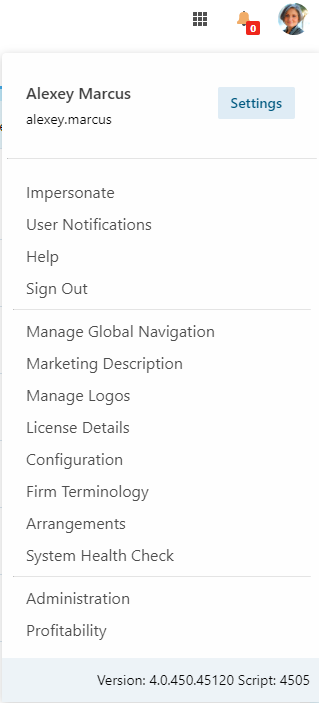 User menu
 Warnings
Notifications:
Notifications notify the important processes that happen or are about to happen in Umbria.
| Name | Appearance Condition | Description /Stages | Actions to Take |
|---|---|---|---|
| SSIS Scripts Execution Status | “ImportTimeBillingData” must be enabled(active) in the [Caliban].[SSISPackage] table. | SSIS not executed in more than 48 hours. | Investigate why SSIS import is not getting automatically triggered. |
| Some SSIS scripts haven’t executed successfully in more than 48 hours. Please check SSIS Log for any errors | Check the SSIS Log in the admin panel and find out why some of the scripts have been executed. | ||
| SSIS Scripts executed successfully. | N/A | ||
| GL Scripts Execution Status | “ImportGLAaccountingData” must be enabled(active) in the [Caliban.SSISPackage] table. | GL scripts not executed in more than 48 hours. | Investigate why GL import is not getting automatically triggered. |
| Some GL scripts haven’t executed successfully in more than 48 hours. Please check SSIS Log for any errors | Check the SSIS Log in the admin panel and find out why some of the scripts have been executed. | ||
| GL scripts executed successfully. | N/A | ||
| License Expiration Status | License must be at least a month prior to expiration | One month left to expire the License | Take the appropriate actions to re-new the license. |
| Few Days Left to expire the License (when one week or less prior to expiration) | Take the appropriate actions to re-new the license. | ||
| License has expired the License (when the license has completely expired) | Take the appropriate actions to re-new the license. |
Tasks:
Tasks in Umbria show commands (only the command types for admins which are listed below) that have failed or are still executing (within the last 7 days).
The alert description is displayed in this format: Command.TaskDescription + (Command.Message)
The following tasks are displayed in the Tasks section:
- The tasks above that have failed and have been in that state for more than 2 days.
- The tasks that are executing and have been executing for more than 10 hours.
Following are the list of the commands Umbria can convert into alerts (Tasks).
| Command Type | Command Description | Command Message |
|---|---|---|
| Time.UpdateTimeStatisticsCommand | Updating time entry monthly statistics. |
Depends on the command message (if the command is successfully executed or if the command fails) |
| Profitability.CalculateProfitabiltyReportCommand | Calculate Profitability command. | |
| Matter.UpdateMatterDisplayNameCommand | Updating matters' display name based on template provided in global settings. | |
| Client.UpdateClientDisplayName | Updating Client' display name based on template provided in Admin. | |
| Elite.Commands.EliteImportCommand | Synchronization with Elite database. | |
| ActiveDirectory.Commands.ActiveDirectoryImportCommand | Synchronization with Active Directory | |
| Rate.UpdateRateCardDisplayName | Updating rate card display name based on template provided in Admin. | |
| Person.UpdateEmployeeStatisticsCommand | Updating employee statistics. | |
| Profitability.TargetDistributionCommand | Execute Target Distribution command | |
| Profitability.ImportSalaryCommand | Import Salary command. | |
| Profitability.AdjustmentPointCommand | Import Adjustment Point command. | |
| Profitability.ExecuteAllocationCommand | Execute Expense/Income allocation command. | |
| Analytics.RefreshCubeDataCommand | Refreshing cube's data. | |
| Experience.EntityTriggerCommand | Execute Triggers to perform various operations | |
| Misc.SendEmailCommand | Sending prepared email message. |
